


Getting Started with ChromaDB: Your First Vector Database Journey
Part 1 of the ChromaDB Mastery Series
Vector databases are revolutionizing how we handle AI applications, especially in the era of Large Language Models (LLMs) and Retrieval-Augmented Generation (RAG) systems. If you’re an AI engineer, Python developer, or anyone looking to build intelligent applications that can understand and search through vast amounts of text data, this comprehensive tutorial series is for you.
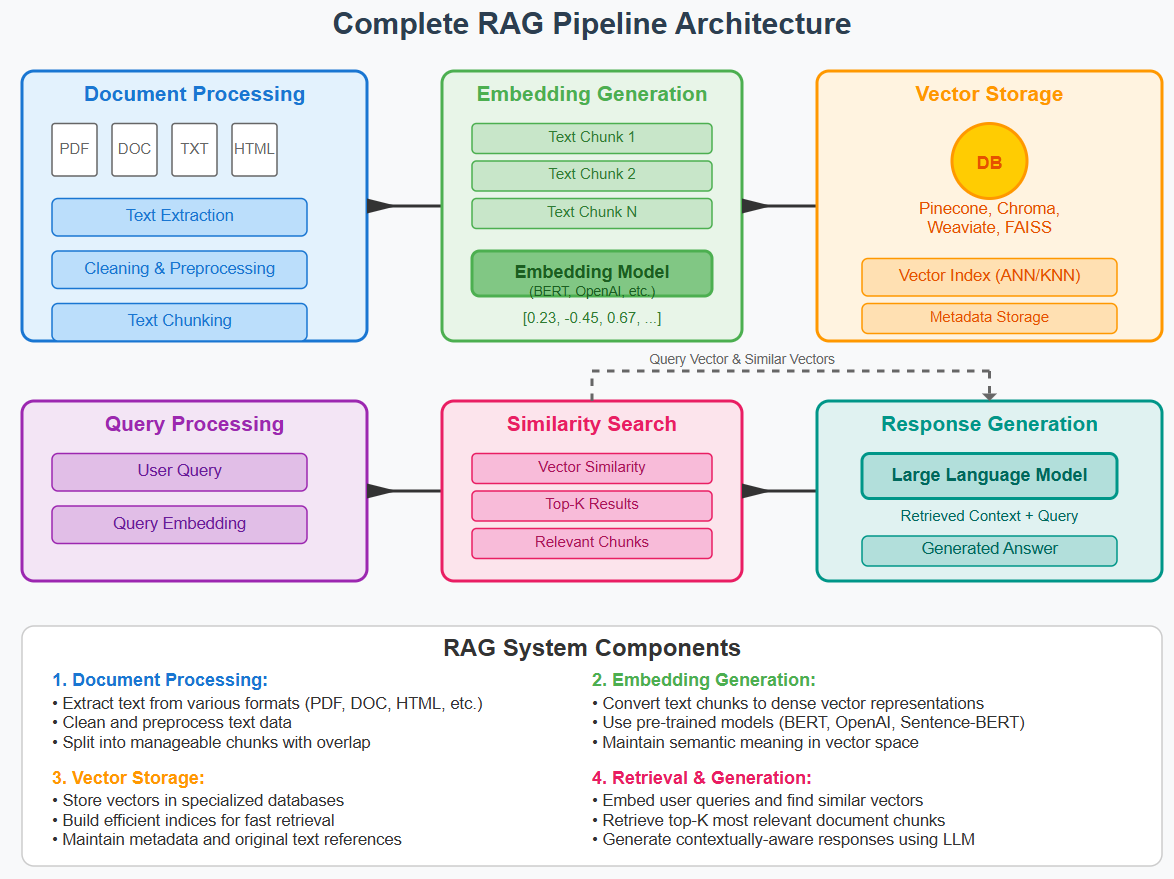
Figure 1: Complete RAG pipeline showing document processing, embedding generation, vector storage, and retrieval workflow
In this first part, we’ll take you from zero to creating your first working vector database with ChromaDB. By the end of this tutorial, you’ll understand what embeddings are, how to generate them, and how to store them efficiently in ChromaDB for lightning-fast similarity searches.
What You’ll Learn in This Tutorial
- File system operations for AI data processing
- Understanding text embeddings with Google’s Vertex AI
- PDF processing and text extraction
- Creating your first ChromaDB collection
- Storing and retrieving vector embeddings
- Basic similarity search operations
Prerequisites
Before we dive in, make sure you have:
- Python 3.8+ installed
- Google Cloud account with Vertex AI enabled
- Basic understanding of Python programming
- Familiarity with AI/ML concepts (helpful but not mandatory)
Required Dependencies
pip install chromadb
pip install google-cloud-aiplatform
pip install PyMuPDF  # for PDF processing
pip install pathlib
Sample Data and Resources
All sample files used in this tutorial are available in our GitHub repository. Clone it to follow along:
git clone https://github.com/promptlyaig/resources.git
cd resources
📁 Files Used in This Tutorial Series:
resources/
├── README.md
└── data/
    ├── cholas.pdf              # Chola Dynasty historical document
    ├── ramayan.pdf             # Ramayana epic text
    ├── forgotten-history.pdf   # Additional historical content
    └── *.png                   # Architecture diagrams and infographics
Key Files for ChromaDB Tutorial:
- cholas.pdf: Used for page-level embedding examples
- ramayan.pdf: Used for basic PDF processing and chunking examples
- forgotten-history.pdf: Used in multi-document processing (Part 2)
- PNG files: Architecture diagrams referenced throughout the series
Chapter 1: Understanding the Foundation – File Operations for AI Data
Before we can work with embeddings, we need to understand how to efficiently handle files and documents. This is crucial for any RAG system where you’ll be processing multiple documents.
Problem Statement
How do we systematically discover and process files in directories for AI applications? Whether you’re working with research papers, documentation, or any text corpus, you need robust file handling.
Code Implementation
from pathlib import Path

def list_all_files(directory_path):
    """Recursively list all files in a directory"""
    directory = Path(directory_path)
    all_files = [str(file) for file in directory.rglob('*') if file.is_file()]
    return all_files

def main():
    base_dir_path = "resources/data"

    files = list_all_files(base_dir_path)

    print(f"Found {len(files)} files in: {base_dir_path}")
    for i, file in enumerate(files, 1):
        print(f"\t{i}. {file}")

if __name__ == "__main__":
    main()
Expected Output
Found 9 files in: resources/data
    1. resources/data/All_Together.png
    2. resources/data/PDFs_to_Embeddings.png
    3. resources/data/RAG_Made_Simple.png
    4. resources/data/Scaling_Up.png
    5. resources/data/cholas.pdf
    6. resources/data/forgotten-history.pdf
    7. resources/data/querymate.png
    8. resources/data/ramayan.pdf
    9. resources/data/vector_store_infographic.png
Explanation
The pathlib.Path.rglob('*') method recursively searches through all subdirectories, making it perfect for discovering documents in complex folder structures. The file.is_file() check ensures we only get actual files, not directories.
Advanced File Filtering for Git Repositories
Sometimes you need to exclude certain directories (like .git folders) from processing:
from pathlib import Path

def list_files_in_git_repo(repo_path):
    """List files while excluding .git directories"""
    repo = Path(repo_path)
    all_files = [
        str(file)
        for file in repo.rglob('*')
        if file.is_file() and '.git' not in file.parts
    ]
    return all_files
This approach is essential when building RAG systems that need to process codebases or documentation repositories without getting cluttered with version control files.
Chapter 2: Specialized File Processing – Working with PDFs
PDF documents are ubiquitous in enterprise environments, research, and documentation. Let’s see how to filter and process them specifically.
Problem Statement
How do we identify and extract content from PDF files in a directory structure for embedding generation?
Code Implementation
from pathlib import Path

def list_pdf_files_in_git_repo(repo_path):
    """Find all PDF files while excluding .git directories"""
    repo = Path(repo_path)
    pdf_files = [
        str(file)
        for file in repo.rglob('*.pdf')
        if '.git' not in file.parts
    ]
    return pdf_files

def main():
    base_dir_path = "resources/data"
    files = list_pdf_files_in_git_repo(base_dir_path)

    print(f"Found {len(files)} PDF files in: {base_dir_path}")
    for i, file in enumerate(files, 1):
        print(f"\t{i}. {file}")

if __name__ == "__main__":
    main()
Expected Output
Found 3 PDF files in: resources/data
    1. resources/data/cholas.pdf
    2. resources/data/forgotten-history.pdf
    3. resources/data/ramayan.pdf
Explanation
The rglob('*.pdf') pattern specifically targets PDF files, making it efficient for document-focused RAG systems. This targeted approach saves processing time and memory when you’re only interested in specific file types.
Chapter 3: Text Chunking Fundamentals
Before we can create embeddings, we need to understand how to break down large texts into manageable chunks. This is crucial because embedding models have token limits and smaller chunks often provide more precise similarity matches.
Problem Statement
How do we split large documents into overlapping chunks that maintain context while staying within embedding model limits?
Code Implementation
from embeddings_utils import get_pdf_text_chunks

def main():
    pdf_file_path = "resources/data/ramayan.pdf"

    chunks = get_pdf_text_chunks(pdf_file_path, page_number=0, chunk_size=30, overlap=5)

    print(f"Total Chunks: {len(chunks)}\n")
    for i, chunk in enumerate(chunks, 1):
        print(f"Chunk {i} - len: {len(chunk)}:\n{chunk}\n")

if __name__ == "__main__":
    main()
Expected Output
Total Chunks: 5

Chunk 1 - len: 30:
Ramayan is an ancient Indian ep

Chunk 2 - len: 30:
an ancient Indian epic.
It nar

Chunk 3 - len: 30:
epic.
It narrates the journey

Chunk 4 - len: 30:
es the journey of Lord Rama.
T

Chunk 5 - len: 37:
ord Rama.
The story includes Sita, L
Explanation
The overlap ensures that context isn’t lost between chunks. In this example, with chunk_size=30 and overlap=5, each chunk shares 5 characters with the previous chunk. This overlap is critical for maintaining semantic continuity in embeddings.
Key Chunking Strategies:
- Small chunks (128-512 tokens): Better for precise matches
- Large chunks (512-2048 tokens): Better for context retention
- Overlap (10-20% of chunk size): Prevents context loss at boundaries
Chapter 4: Your First Embedding Generation
Now comes the exciting part – converting text into numerical vectors that AI models can understand and compare. We’ll use Google’s Vertex AI text-embedding-004 model, which is state-of-the-art for semantic understanding.
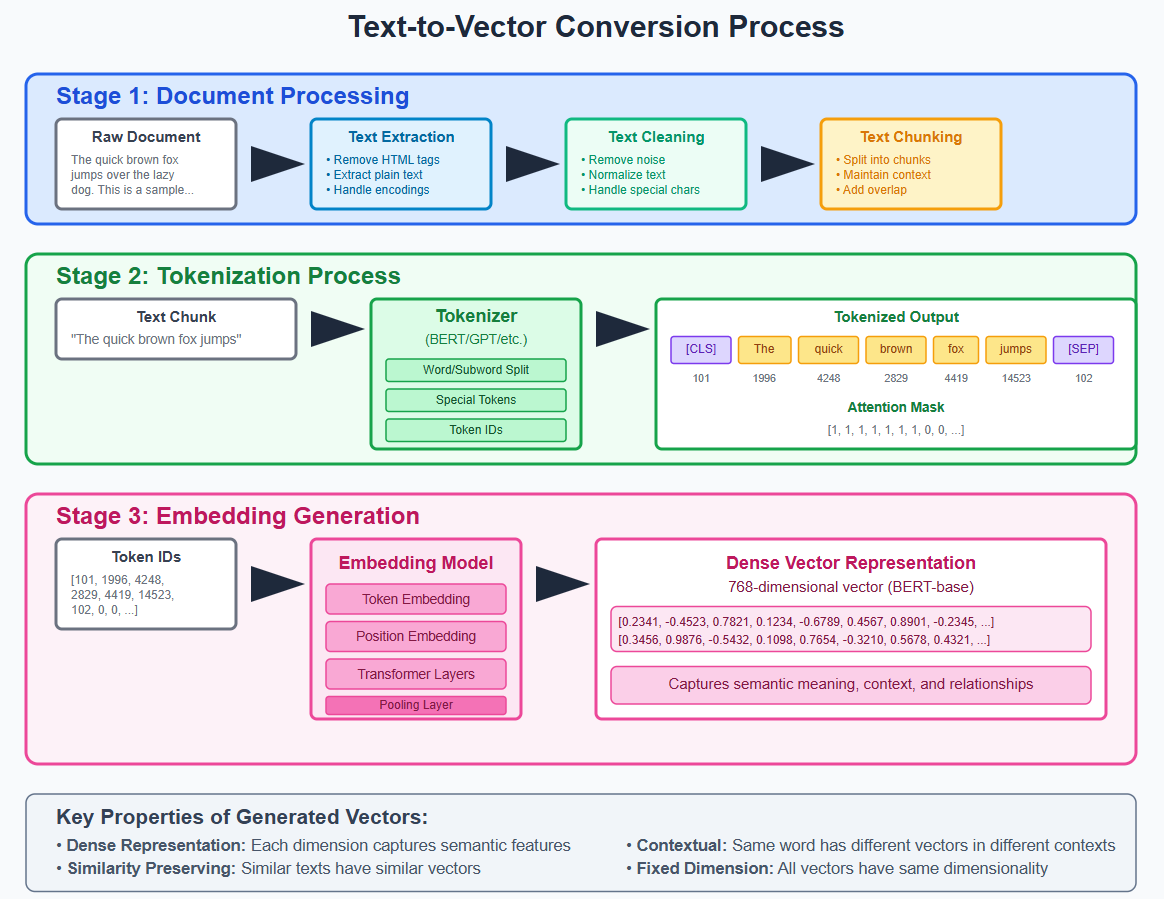
Figure 4: Text-to-vector conversion process showing document processing, tokenization, and embedding generation
Problem Statement
How do we convert human-readable text into numerical vectors (embeddings) that capture semantic meaning?
Code Implementation
from vertexai.language_models import TextEmbeddingModel

def text_to_embeddings_basic():
    text_bytes = "India's Glorious History"

    text_embedding_model = TextEmbeddingModel.from_pretrained("text-embedding-004")
    embeddings = text_embedding_model.get_embeddings([text_bytes])

    print(f"Text: {text_bytes}")
    print(f"Embeddings type: {type(embeddings)}")
    print(f"Embeddings len: {len(embeddings)}")

    embedding_obj = embeddings[0]
    print(f"Token count: {embedding_obj.statistics.token_count}")
    print(f"Embedding values: {embedding_obj.values[:5]}")
    print(f"Embedding values len: {len(embedding_obj.values)}")

if __name__ == "__main__":
    text_to_embeddings_basic()
Expected Output
Text: India's Glorious History
Embeddings type: <class 'list'>
Embeddings len: 1
Token count: 4
Embedding values: [0.0123, -0.0456, 0.0789, -0.0234, 0.0567]
Embedding values len: 768
Explanation
The Vertex AI text-embedding-004 model converts our text into a 768-dimensional vector. Each dimension captures different aspects of the text’s semantic meaning. The beauty of embeddings is that semantically similar texts will have similar vector representations.
Working with Multiple Texts and Custom Dimensions
def text_to_embeddings_multiple():
    text_bytes = "India's Glorious History"
    str_kingdom = "Kingdom of Magadh, 6th Century BCE to 8th Century BCE"

    text_embedding_model = TextEmbeddingModel.from_pretrained("text-embedding-004")
    embeddings = text_embedding_model.get_embeddings(
        [text_bytes, str_kingdom],
        output_dimensionality=10
    )

    print(f"Processing {len(embeddings)} texts")
    for i, embedding_obj in enumerate(embeddings):
        print(f"Text {i+1} token count: {embedding_obj.statistics.token_count}")
        print(f"Embedding dimensions: {len(embedding_obj.values)}")
        print(f"First 5 values: {embedding_obj.values[:5]}")
        print()
Key Insights About Real Content
Looking at our actual files:
- ramayan.pdf: A concise 126-character summary of the epic
- cholas.pdf: A comprehensive 2,778-character historical document across 2 pages
- Text variety: From brief summaries to detailed historical accounts
- Content quality: Well-structured, informative text ideal for embeddings
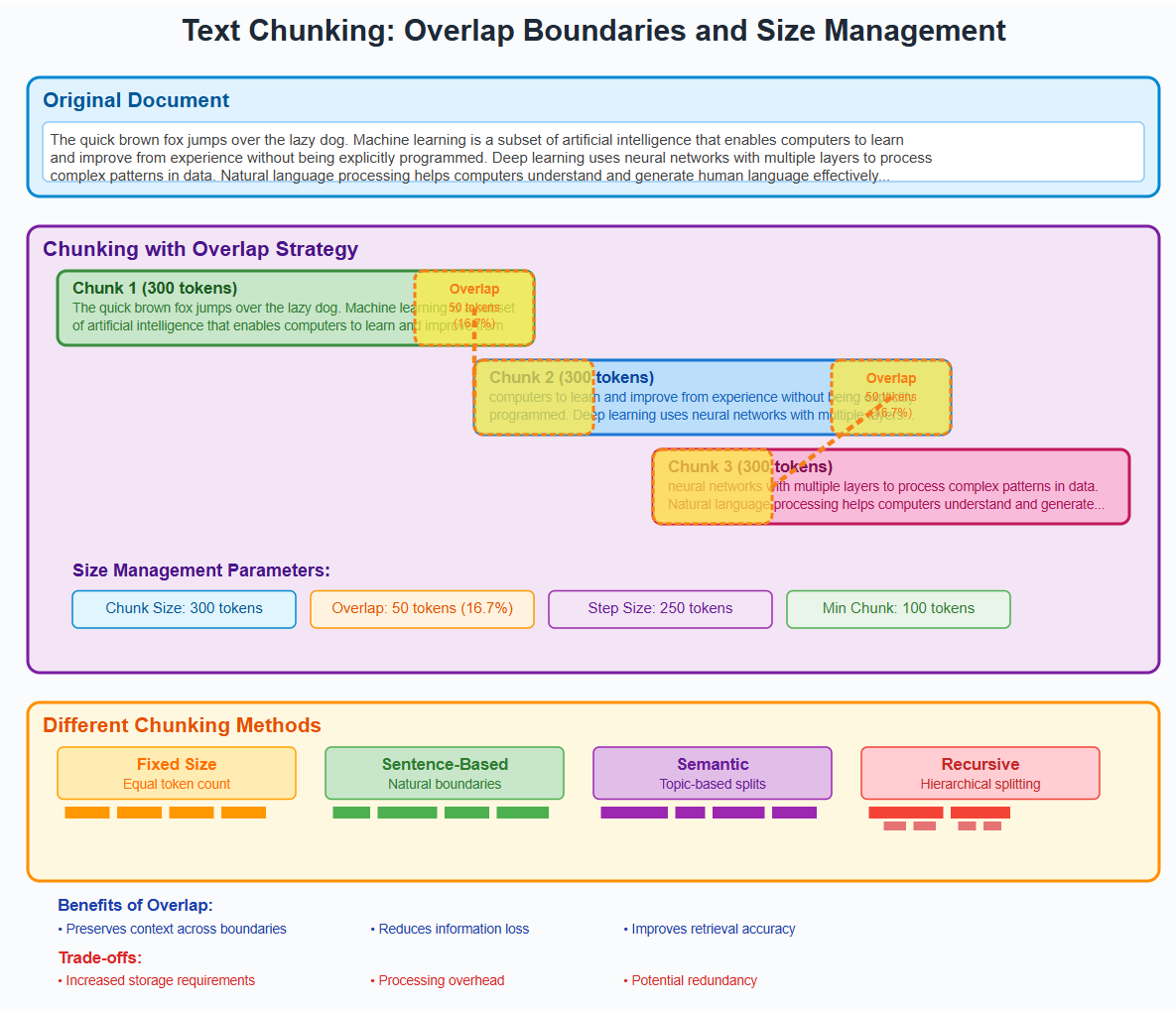
Figure 3: Visual representation of text chunking with overlap boundaries and size management (700x500px)
The Ramayana file demonstrates how even short, meaningful text can be effectively chunked and embedded, while the Cholas document shows how longer, multi-page content gets processed page by page.
Chapter 5: PDF Content to Embeddings Pipeline
Let’s combine everything we’ve learned to create a complete pipeline that processes PDF files and generates embeddings.
Problem Statement
How do we extract text from PDF files and convert it into embeddings suitable for vector database storage?
Code Implementation
import logging
from embeddings_utils import get_texts_embeddings, get_pdf_text

def main():
    pdf_file_path = "resources/data/ramayan.pdf"

    # Extract text from PDF
    text_bytes = get_pdf_text(pdf_file_path)
    print(f"Extracted text length: {len(text_bytes)} characters")

    # Generate embeddings
    embed_dict = get_texts_embeddings(text_bytes)

    print("---Text---")
    print(f"{embed_dict['text'][:50]}... (truncated), actual len: {len(embed_dict['text'])}")
    print()

    print("---Embeddings---")
    print(f"Embeddings len: {len(embed_dict['text-embedding'])}")
    print(f"{embed_dict['text-embedding'][:10]}... (truncated)")

if __name__ == "__main__":
    main()
Expected Output
Extracted text length: 126 characters
---Text---
Ramayan is an ancient Indian epic.
It narrates the... (truncated), actual len: 126
---Embeddings---
Embeddings len: 768
[0.0234, -0.0567, 0.0891, -0.0123, 0.0456, 0.0789, -0.0234, 0.0567, 0.0891, -0.0123]... (truncated)
Explanation
This pipeline demonstrates the complete flow from raw PDF to vector representation. The get_pdf_text() function uses PyMuPDF to extract text, while get_texts_embeddings() handles the Vertex AI API interaction.
Chapter 6: Page-Level Embeddings for Precise Retrieval
Sometimes you need more granular control over your embeddings. Instead of treating the entire document as one embedding, let’s create separate embeddings for each page.
Problem Statement
How do we create individual embeddings for each page of a document while maintaining both page-level and document-level searchability?
Code Implementation
from embeddings_utils import get_texts_embeddings, get_pdf_page_embeddings
import logging

def main():
    pdf_file_path = "resources/data/cholas.pdf"

    # Get page-by-page embeddings
    page_embeddings, full_text = get_pdf_page_embeddings(pdf_file_path)

    # Get full document embedding
    file_embed = get_texts_embeddings(full_text)

    print(f"\nFile: {pdf_file_path}")
    print(f"Total pages processed: {len(page_embeddings)}")

    for page_data in page_embeddings:
        print(f"\tPage {page_data['page_number']}:")
        print(f"\t  Text length: {len(page_data['text'])}")
        print(f"\t  Text preview: {page_data['text'][:50]}...")
        print(f"\t  Embedding dimensions: {len(page_data['text-embedding'])}")
        print()

    print(f"Full document text length: {len(file_embed['text'])}")
    print(f"Full document embedding dimensions: {len(file_embed['text-embedding'])}")

if __name__ == "__main__":
    main()
Expected Output
File: resources/pdfs/cholas.pdf
Total pages processed: 5

    Page 1:
      Text length: 2340
      Text preview: The Chola Dynasty was one of the longest-ruling...
      Embedding dimensions: 768

    Page 2:
      Text length: 2156
      Text preview: Raja Raja Chola I ascended to the throne in...
      Embedding dimensions: 768
...
Explanation
Page-level embeddings offer several advantages:
- Precision: Users can find exact page references
- Context: Maintain page-specific context
- Flexibility: Mix page-level and document-level searches
- Memory efficiency: Load only relevant pages during retrieval
Chapter 7: Your First ChromaDB Vector Database
Now for the main event – creating and using your first vector database with ChromaDB. This is where all our previous work comes together into a searchable, persistent system.
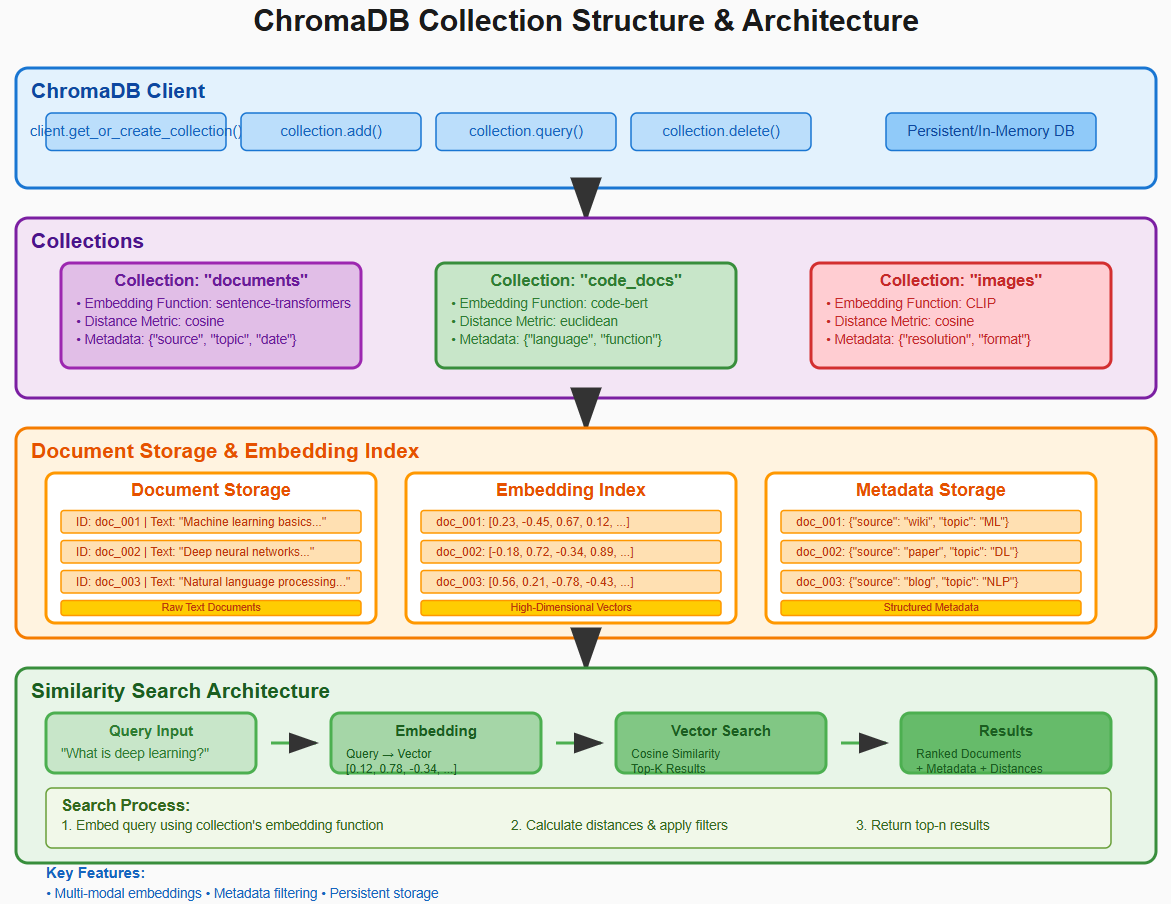
Figure 5: ChromaDB collection structure showing document storage, embedding indexing, and similarity search architecture (900x600px)
Problem Statement
How do we create a persistent vector database that can store embeddings and perform fast similarity searches?
Code Implementation
import chromadb
from vertexai.language_models import TextEmbeddingModel

def create_vertex_vectordb(vectdb_name, coll_name):
    """Create or connect to a persistent ChromaDB collection"""
    client = chromadb.PersistentClient(path=vectdb_name)
    collection = client.get_or_create_collection(name=coll_name)
    return collection

def get_vertex_embedding(text, output_dimensionality=None):
    """Generate embedding using Vertex AI"""
    model = TextEmbeddingModel.from_pretrained("text-embedding-004")
    embeddings = model.get_embeddings([text], output_dimensionality=output_dimensionality)
    return embeddings[0].values

def write_to_vertex_vectordb(collection, ids, texts, metadatas=None):
    """Store texts and their embeddings in ChromaDB"""
    embeddings = [get_vertex_embedding(text) for text in texts]
    collection.add(
        documents=texts,
        ids=ids,
        metadatas=metadatas,
        embeddings=embeddings
    )

def similarity_search_vertex(collection, query_text, top_k=3):
    """Perform similarity search using vector embeddings"""
    query_embedding = get_vertex_embedding(query_text)
    results = collection.query(
        query_embeddings=[query_embedding],
        n_results=top_k
    )
    return results

def main():
    # Database configuration
    vertex_db_path = "promptlyai-vdb"
    vertex_coll_name = "cholas-coll"

    # Create collection
    vertex_collection = create_vertex_vectordb(vertex_db_path, vertex_coll_name)

    # Prepare data
    vertex_ids = ["ramayan_doc", "cholas_doc"]
    vertex_texts = [
        "Ramayan is an ancient Indian epic. It narrates the journey of Lord Rama.",
        "The Chola Dynasty, one of the longest-ruling and most powerful dynasties in South Indian history"
    ]

    # Store data
    write_to_vertex_vectordb(vertex_collection, vertex_ids, vertex_texts)
    print("Data stored successfully!")

    # Search examples
    query1 = "ancient Indian epic story"
    results1 = similarity_search_vertex(vertex_collection, query1)
    print(f"\nQuery: '{query1}'")
    print(f"Most similar: {results1['documents'][0][0]}")  # Should match Ramayan

    query2 = "South Indian dynasty history"
    results2 = similarity_search_vertex(vertex_collection, query2)
    print(f"\nQuery: '{query2}'")
    print(f"Most similar: {results2['documents'][0][0]}")  # Should match Cholas

if __name__ == "__main__":
    main()
Expected Output
Data stored successfully!

Query: 'ancient Indian epic story'
Most similar: Ramayan is an ancient Indian epic. It narrates the journey of Lord Rama.

Query: 'South Indian dynasty history'
Most similar: The Chola Dynasty, one of the longest-ruling and most powerful dynasties in South Indian history
Explanation
This example demonstrates the complete ChromaDB workflow:
- Persistent Storage:
PersistentClientensures data survives program restarts - Collection Management: Organized storage of related documents
- Automatic Embedding: Documents are automatically converted to vectors
- Similarity Search: Queries return the most semantically similar documents
- Distance Scores: Lower distances indicate higher similarity
Key ChromaDB Concepts
Collections: Like database tables, but for vectors
- Each collection can have its own embedding function
- Metadata filtering capabilities
- Automatic indexing for fast searches
Documents vs Embeddings:
- Documents: Original text content
- Embeddings: Vector representations for similarity calculations
- Both are stored and returned during searches
Distance Metrics:
- ChromaDB uses cosine similarity by default
- Lower distances = higher similarity
- Distances typically range from 0 (identical) to 2 (completely different)
Understanding Vector Similarity Search
Vector similarity search is the magic behind modern AI applications. Here’s how it works:
The Mathematical Foundation
When you search for “AI text vectorization” in our example above:
- Query Processing: Your search text gets converted to a 768-dimensional vector
- Similarity Calculation: ChromaDB compares this vector with all stored vectors using cosine similarity
- Ranking: Results are ranked by similarity score (distance)
- Return: The most similar documents are returned with their similarity scores
Visual Representation
Query: "AI text vectorization"
Vector: [0.1, -0.3, 0.7, ...]

Stored Documents:
Document 1: "Text embeddings using Vertex AI"
Vector: [0.12, -0.28, 0.71, ...]  → Distance: 0.123 (very similar!)

Document 2: "Cloud-based AI models"
Vector: [0.05, -0.15, 0.45, ...]  → Distance: 0.567 (less similar)
The first document has a much lower distance (0.123 vs 0.567), indicating it’s more semantically similar to the query.
Production Considerations and Best Practices
As you start building real applications, keep these important considerations in mind:
Performance Optimization
Batch Operations: Always process multiple documents together when possible:
# Good: Batch processing
embeddings = model.get_embeddings([text1, text2, text3, ...])

# Avoid: Individual processing
embedding1 = model.get_embeddings([text1])
embedding2 = model.get_embeddings([text2])  # Separate API calls
Memory Management: For large documents, consider chunking strategies:
- Small chunks (256 tokens): Better precision
- Large chunks (1024 tokens): Better context
- Optimal overlap: 10-20% of chunk size
Data Organization
Meaningful IDs: Use descriptive identifiers:
ids = [
    f"{document_name}_page_{page_num}",
    f"{document_name}_chunk_{chunk_num}"
]
Rich Metadata: Store searchable attributes:
metadata = {
    "source": "research_paper.pdf",
    "page_number": 5,
    "document_type": "academic",
    "author": "Dr. Smith",
    "publication_date": "2023-10-15"
}
Error Handling
Always implement proper error handling for production systems:
try:
    embeddings = model.get_embeddings([text])
    collection.add(documents=[text], embeddings=embeddings, ids=[doc_id])
except Exception as e:
    logging.error(f"Failed to process document {doc_id}: {str(e)}")
    # Implement retry logic or fallback strategy
Frequently Asked Questions
Q: How many documents can ChromaDB handle? A: ChromaDB can handle millions of documents efficiently. Performance depends on your hardware, but collections with 100K+ documents are common in production.
Q: Can I use different embedding models with ChromaDB? A: Absolutely! ChromaDB is model-agnostic. You can use OpenAI embeddings, Hugging Face models, or any custom embedding function.
Q: How do I choose the right chunk size? A: Start with 512 tokens and adjust based on your use case:
- Shorter chunks (128-256): Better for factual Q&A
- Longer chunks (512-1024): Better for contextual understanding
- Very long chunks (1024+): Risk losing precision
Q: Is ChromaDB suitable for production applications? A: Yes! ChromaDB is designed for production use with features like persistence, scalability, and robust querying capabilities.
Q: How do I update or delete documents in ChromaDB? A: ChromaDB supports full CRUD operations. We’ll cover updating and deleting documents in Part 2 of this series.
Q: Can I filter searches by metadata? A: Yes! ChromaDB supports powerful metadata filtering. You can combine similarity search with attribute-based filtering for precise results.
What’s Next?
In Part 1, we’ve built a solid foundation with ChromaDB basics, file processing, embeddings generation, and your first vector database. You now understand:
- How to process files and PDFs for AI applications
- The fundamentals of text embeddings
- Creating and using ChromaDB collections
- Performing basic similarity searches
In Part 2: “Advanced ChromaDB Operations: CRUD, Queries, and Data Management”, we’ll dive deeper into:
- Complete CRUD operations with ChromaDB
- Advanced querying techniques with metadata filtering
- Batch processing strategies for large document collections
- Performance optimization for production workloads
- Error handling and recovery strategies
In Part 3: “Building Production RAG Systems”, we’ll combine everything to build:
- Complete RAG applications with LLM integration
- Context-aware search and response generation
- Production deployment patterns
- Monitoring and optimization strategies
Resources and Links
- Complete source code: ChromaVertex-RAG GitHub Repository
- ChromaDB Documentation: https://docs.trychroma.com/
- Vertex AI Embeddings: https://cloud.google.com/vertex-ai/docs/generative-ai/embeddings
- Author’s website: https://promptlyai.in
Conclusion
Vector databases like ChromaDB are transforming how we build AI applications. By converting text into semantic vectors, we can create systems that truly understand content meaning, not just keyword matches.
The foundation you’ve built in this tutorial – from file processing to embeddings generation to vector storage – forms the backbone of modern RAG systems, chatbots, and intelligent search applications.
Take time to experiment with the code examples, try different document types, and explore various query patterns. The hands-on experience will solidify these concepts and prepare you for the more advanced topics in Part 2.
Remember: building great AI applications is iterative. Start simple, measure performance, and gradually add complexity as you understand your specific use case better.
Ready to level up your ChromaDB skills? Continue with Part 2 where we’ll explore advanced operations and prepare for production deployment!